OwlPath Academy Educational Platform for Parents & Students
Introducing OwlPath Academy’s Educational Platform: See Your Child’s Progress, Lesson by Lesson
OwlPath Academy’s educational platform is now live. Every OwlPath family gets a parent dashboard and a student dashboard, so you can see what was taught in each lesson, how your child is getting on and what homework is due.
When a child has tuition, parents often hear very little about what happens in the lessons. The platform puts that information in one place, so you don’t have to ask.
OwlPath Academy offers 11+, SATs and GCSE tuition in Wirral, Chester and online, and the platform shows you what is happening in your child’s lessons. This post explains how it works and what parents and students can see. The screenshots use example data.
How the platform works
After each lesson, one of our tutors writes it up on the platform. They record who attended, what was taught, how the lesson went, a score for each topic and any homework they have set.
That record appears on your dashboard. Your child sees the topics covered and the tutor’s feedback on theirs.
Your child then completes homework and practice questions on their own dashboard. Tutors review their progress and use it to decide which areas need more explanation or practice in future lessons.
Parents and students each have their own account and their own sign-in.
What parents can see
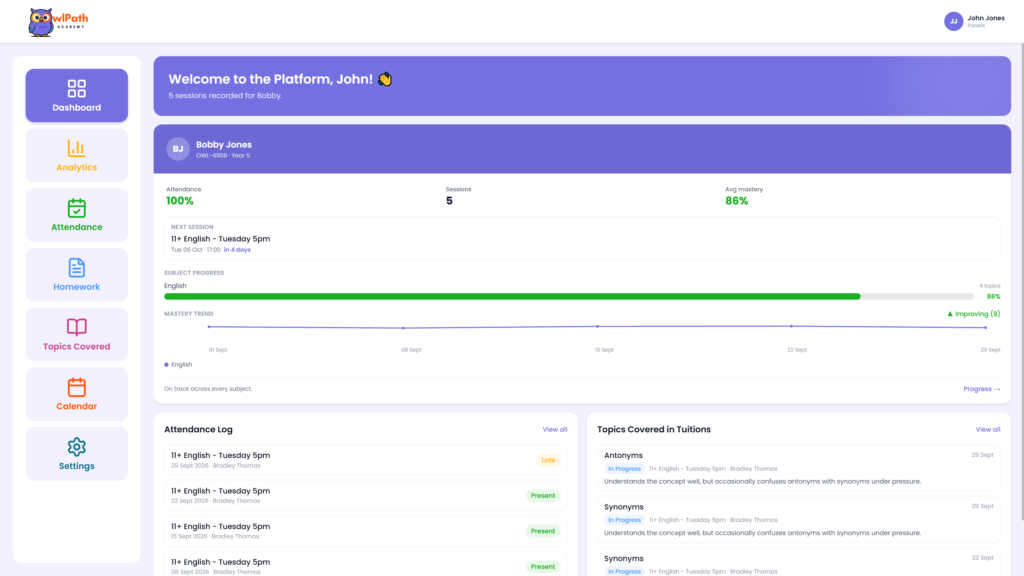
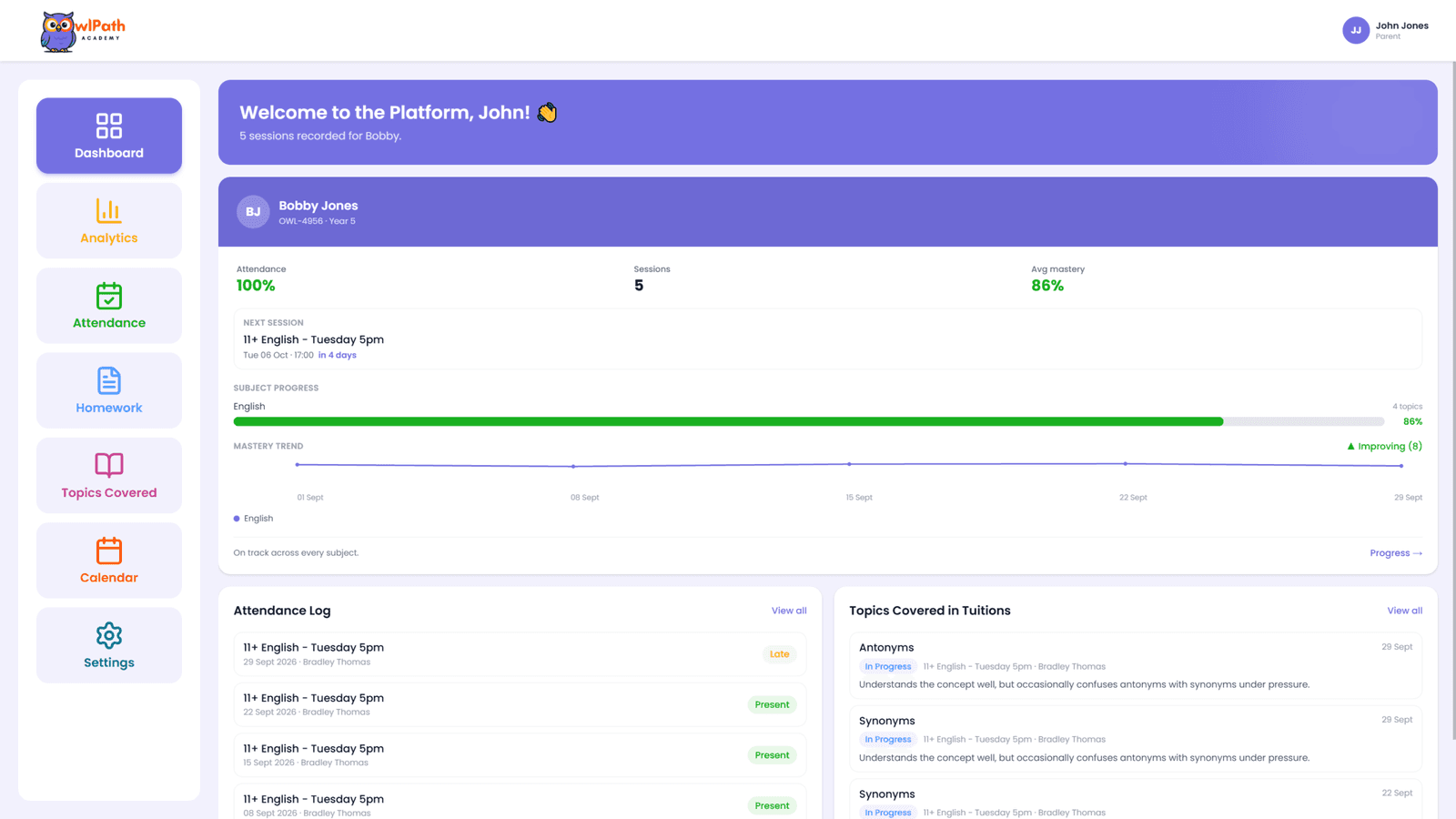
Your dashboard overview
Your dashboard opens with a summary for your child. It shows their attendance rate, how many sessions have been recorded, their average mastery score, and when their next session is. Below that you can see progress in each subject, a trend line showing how their scores are changing, and the most recent attendance and topics.
The mastery score is a percentage for each topic, set by the tutor, showing how well your child has understood it.
Attendance
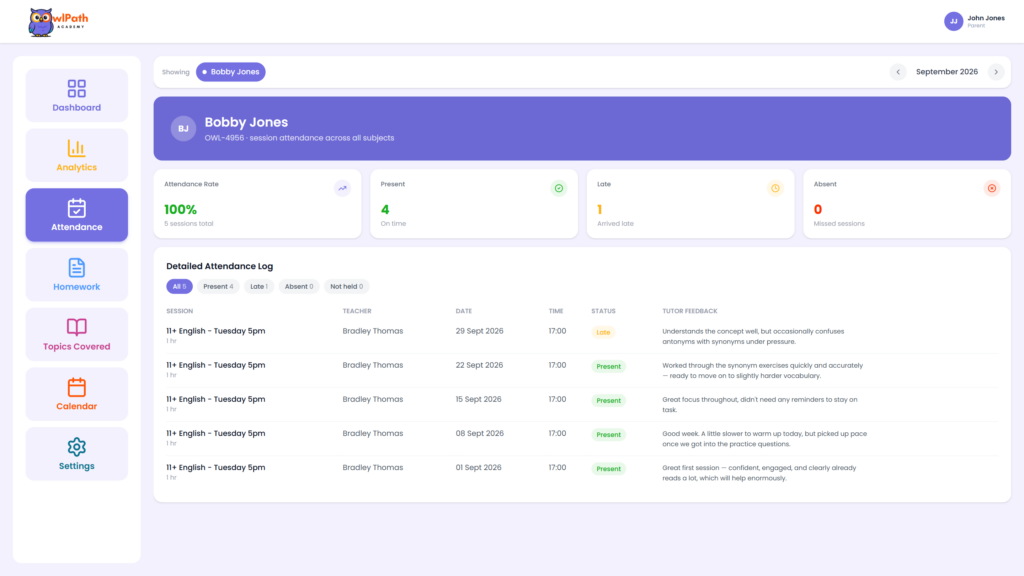
The attendance page lists every lesson with its date, time, tutor and status: present, late or absent. Each one includes the tutor’s feedback from that lesson. You can move between months and filter the list by present, late, absent or not held.
Tutors can also leave notes that are only visible to parents.
Topics Covered
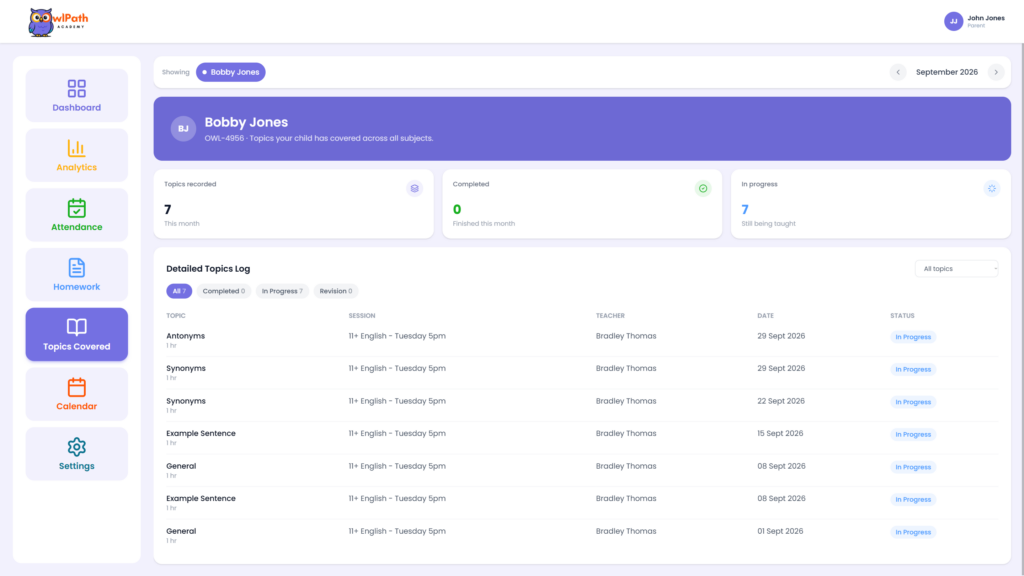
This page shows what your child has been taught, session by session. Each topic is listed with the session, tutor and date, and is marked as in progress, completed or revision. A summary at the top shows how many topics have been recorded this month and how many are finished.
Analytics
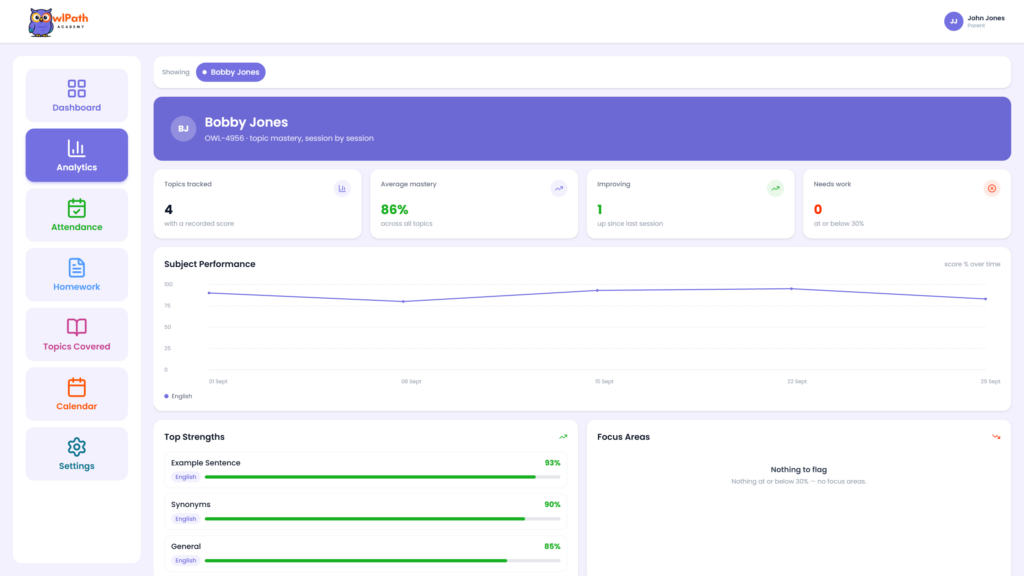
Analytics shows how your child is doing in each topic over time. The headline figures are how many topics have a recorded score, their average mastery, how many topics have improved since the last session and how many need work, which means a score of 30% or below.
A chart shows their scores across sessions. Top Strengths lists the topics they are doing best in, and Focus Areas flags anything that needs attention, so you can see where extra practice would help.
Homework
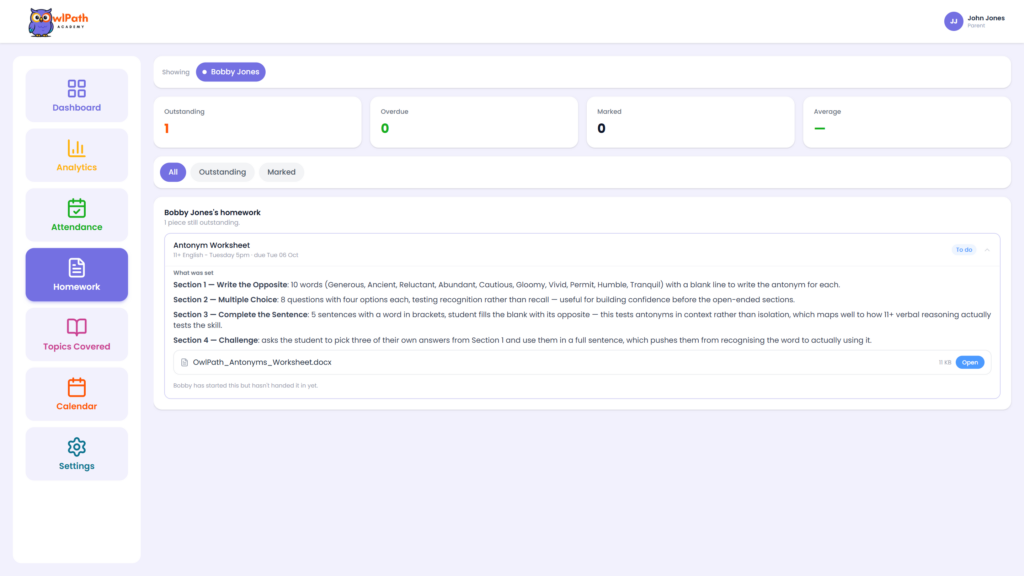
The homework page shows what the tutor has set, what is outstanding or overdue and what has been marked. Each piece shows the due date, what was set, the worksheet itself, and whether your child has started it or handed it in. Once the tutor has marked it, you can see the score.
Calendar
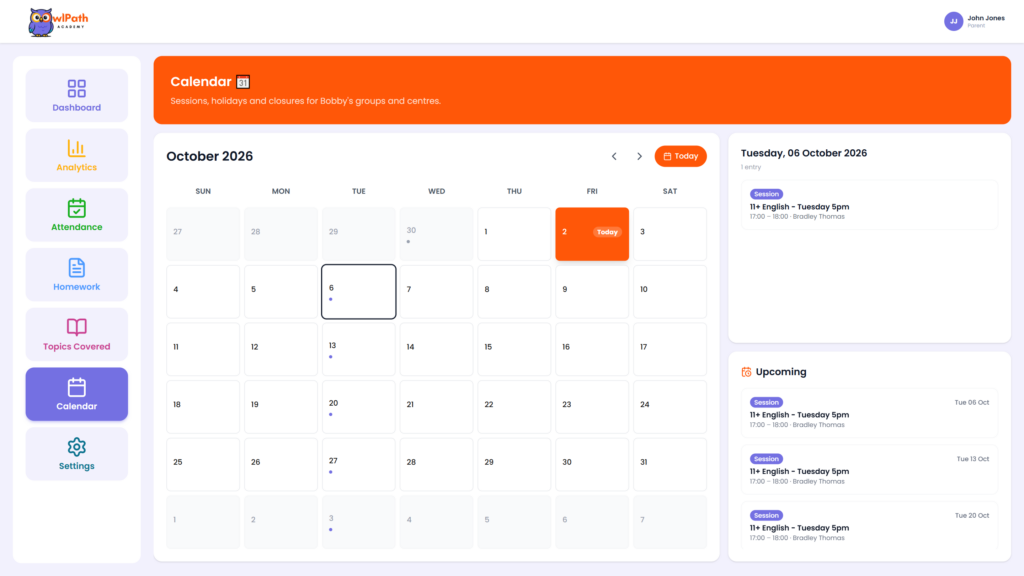
The calendar shows your child’s upcoming lessons, plus holidays and closures for their group and centre. Select a day to see what is on, or use the upcoming list to see what is next.
More than one child
Have more than one child? Each one gets their own dashboard, and you can view them side by side easily, so keeping track of everyone is simple, not a chore.
What students can see
Each student has their own dashboard, designed for them. Here is what is on it.
Dashboard
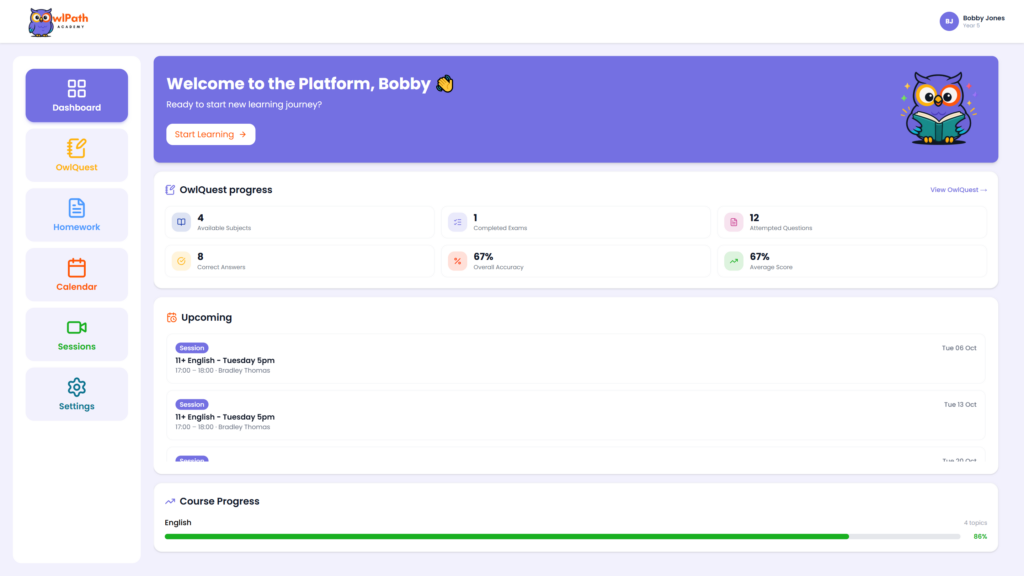
The student dashboard has a Start Learning button, a summary of their OwlQuest progress, their upcoming sessions and their progress in each subject. The OwlQuest summary shows how many subjects are available, how many exams they have completed, how many questions they have attempted and answered correctly, and their overall accuracy and average score.
OwlQuest practice
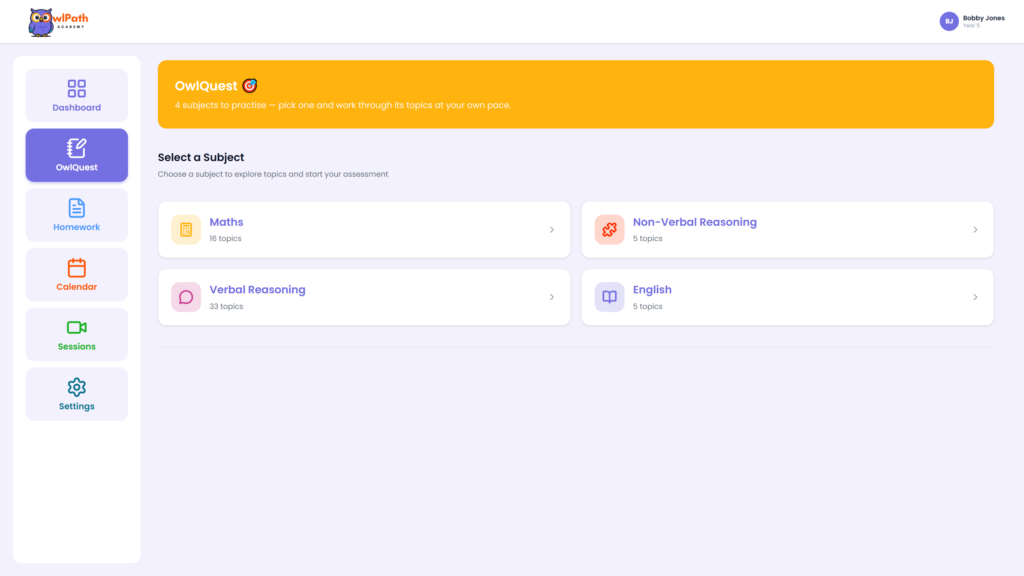
OwlQuest is where students practise on their own. They choose a subject, such as Maths, Verbal Reasoning, Non-Verbal Reasoning or English, and work through its topics at their own pace.
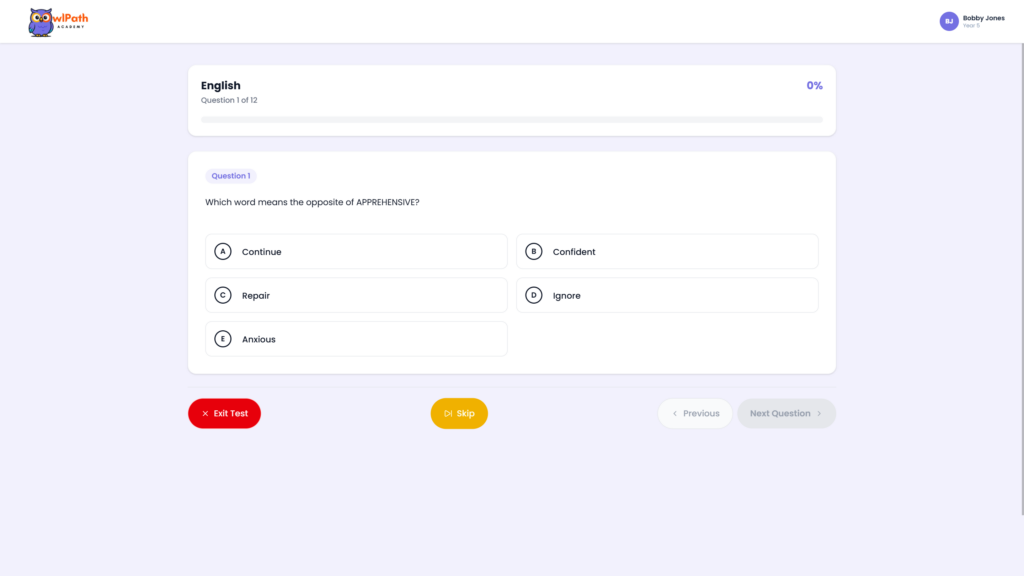
Questions are multiple choice. Students can skip a question, go back to a previous one or exit the test. OwlQuest also includes mock exams, so students can build up to full papers.
Homework
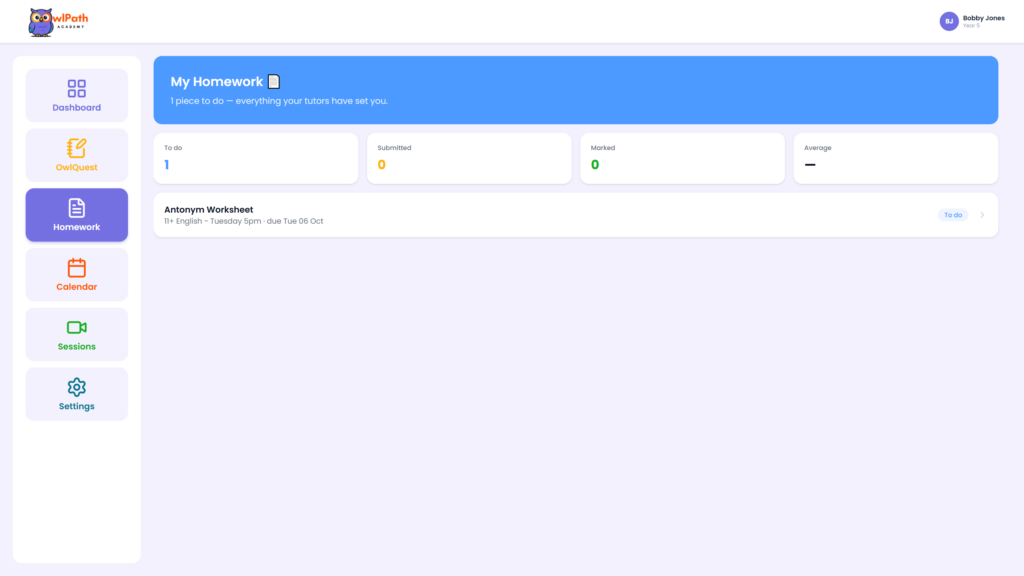
Everything the tutor has set appears in one list, showing what is to do, submitted and marked, along with an average score.
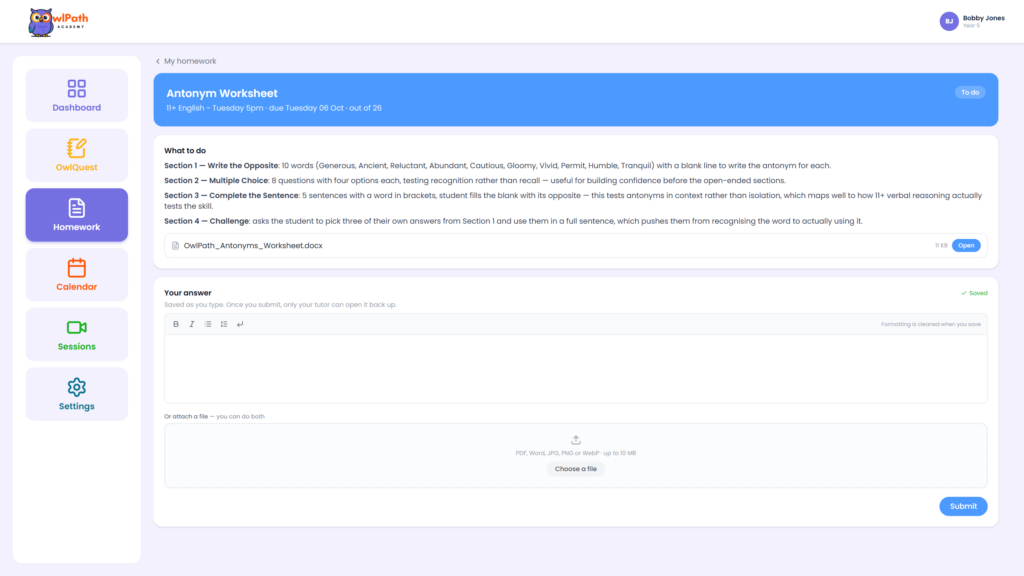
To complete a piece of homework, your child opens the worksheet, then types their answer on screen, attaches a file, or does both. Files can be PDF, Word, JPG, PNG or WebP, up to 10 MB. Their answer is saved as they type. Once they submit, only their tutor can open it. When the tutor has marked it, the score appears on the dashboard.
Sessions attended
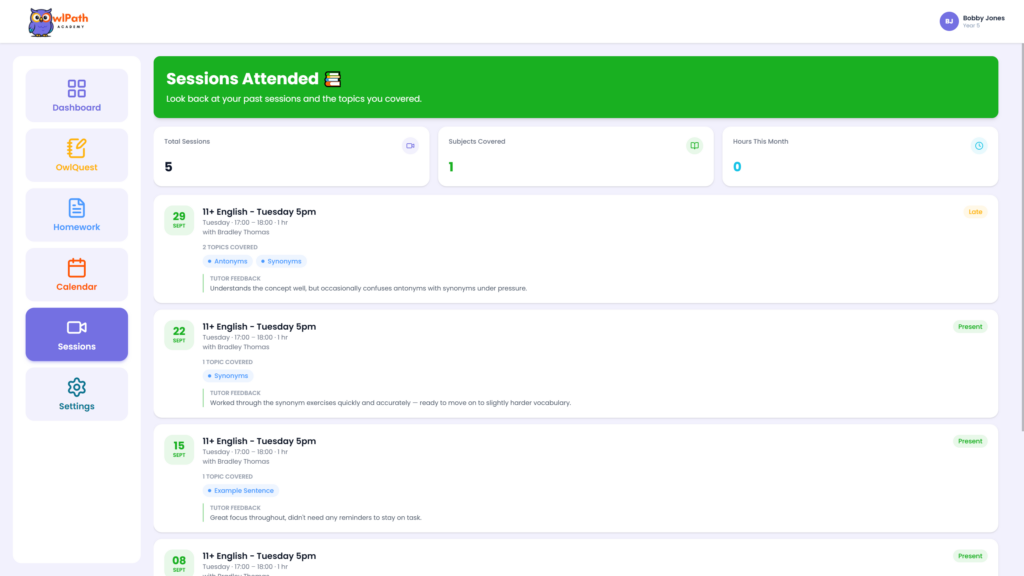
Students can look back at every lesson they have had. Each one shows the date, tutor, whether they were present or late, the topics covered and the tutor’s feedback.
Calendar
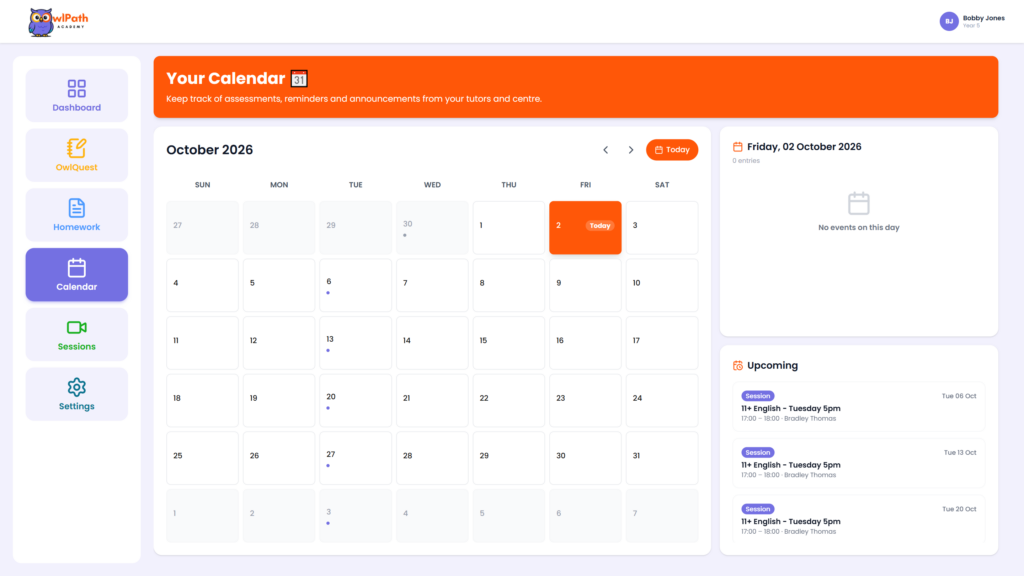
The student calendar helps them keep track of their lessons, assessments, reminders and announcements from their tutors and centre.
Frequently asked questions
Does my child have their own login? Yes. Parents and students each have their own account and their own dashboard.
What can I see as a parent? You can see your child’s attendance, the topics covered in each lesson, their progress in each topic, their homework and their calendar, along with the tutor’s feedback.
Can I see more than one child? Yes. Each child has their own dashboard, and you can view them side by side easily, so keeping track of everyone is simple, not a chore.
What is OwlQuest? OwlQuest is the practice area on the student dashboard. Students choose a subject and work through its topics with multiple-choice questions, and it also includes mock exams.
How do I get access? Register your child using our registration form. Once the team has set up your accounts, you will receive your sign-in details by email.
Can I use the platform on my phone? Yes. The platform works on mobile, so parents and students can check in from a phone as well as a computer. It runs in your web browser, so there is nothing to download.
Get started
To register your child, fill in our registration form. You can change your password from Settings after you first sign in.
If you would like to see where your child is now before you decide, they can take our free 11+ assessment. You can also look at our tutoring options or get in touch with any questions.
Register Your Child Take Free AssessmentMore From OwlPath
11+ Tutoring in Chester: What Should Parents Look For?
If you’re searching for 11+ tutoring in Chester, you will quickly discover that there are plenty of options. One-to-one tutors. Large tuition centres. Online co…
Read more →
How Does the Wirral 11+ Work? A Guide for Parents
If your child is considering a grammar school on the Wirral, the 11+ process can initially seem confusing. There are assessment registrations, school applicatio…
Read more →
When Should My Child Start Preparing for the 11+?
One of the most common questions parents ask about the 11+ is: “When should we start preparing?” Search online and you’ll find very different answers. Some fami…
Read more →Not Sure Where to Start?
Take a free baseline assessment to see exactly where your child stands, or book a free consultation to talk it through.

